

Canva is by far the most widely utilized graphic design tool, with creative company owners using it practically daily.

It’s the ideal tool for novices, those who only need to create a quick graphic, and anyone who values the simplicity of use and a reasonable number of options above using and learning complex software.
We at Tooling Ant fit right in with that group of people! Even though we have skilled designers on our staff who are educated in such powerful programs, Canva is still the best tool for creating stunning visuals for any application.
Table of Contents
Should I Use Canva?
We’re going to go through the top 7 reasons why we use Canva in this blog article (and why you should too!).
1. Easily Work Together on Designs With Team Members
One of our very favorite Canva features is the option to invite others to contribute to designs!
If you wish to share a design with another person, you may create a shareable link that will let them examine the design, use it as a template, or make changes.
If you give someone permission to edit, they may also add comments to the file, either on the entire document or simply on certain pages or sections.
This greatly simplifies the evaluation and approval procedure for our staff.
We frequently use the “share as a template” feature. People can copy the file to their account using the link.
They own it at that point, so any changes they make won’t have an impact on the original file in your account.
Canva Teams
You may add users to your Canva account in addition to merely sharing links with them by setting up a Team.
This means that they will have the opportunity to switch to your brand or company when they register into their own Canva accounts.
They would have access to all of your designs, your Brand Kit, uploads and files, and more, depending on the position you give them.
There are three roles that may be given to individuals.
The team owner’s access and capabilities are fully shared by the administrator.
Members may access shared team files and designs, as well as use team templates to develop their own designs.
With the exception of the ability to establish or edit Teams, Template Designer has practically all of the same skills as an Administrator.
Their entire range of expertise is focused on producing and disseminating designs.
Only Canva Pro subscribers have access to the Template Designer job.
Your team members will have access to all of the exclusive Pro features in your account if you have a Canva Pro subscription!
You can establish up to 5 teams, each with a maximum of 3000 members, as a Canva Pro user for only $12.99/month.

2. Canva’s User Interface Is Simple to Use
The interface’s design is laughably basic.
A complete novice to graphic design might quickly discover everything they need and finish their job!
Their features are relatively simple, so you won’t have to go through a menu of ambiguous options or dozens of complex options before finding one that accomplishes what you need it to.
You could master Canva in less than a week, but learning all of the possibilities in Adobe’s products would take months.
To help you get started, we broke down all of Canva’s features and functionalities in one blog article.
3. A Free Version Is Available
Yes, you did read that right.
You can utilize Canva’s free edition, and it’s not just available for a short period of time.
Within minutes, you’ll be able to quickly and easily produce, download, and share aesthetically engaging material. How wonderful is that?
That being said, limiting access is a drawback of free products.
Several capabilities are available in the free edition, but for $12.95 a month, you can subscribe to CanvaPro and have access to even more tools that will help you spice up your material.
Our Top Advice: Our best recommendation is to subscribe to CanvaPro in order to take use of all of their fantastic features if you plan on using Canva frequently.
4. Brand Kits Can Help You Save Brand Assets
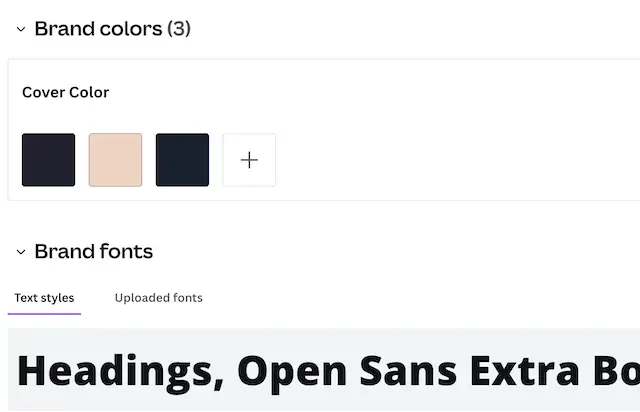
We are able to quickly access and use our brand assets in designs, such as our company’s color scheme, typefaces, and logos, thanks to Brand Kits with Canva Pro.
We can produce several Brand Kits for each brand since we utilize the same Canva account for all of them, allowing us to keep our materials organized.
- Your choice of colors codes in HEX.
- You just require the following to assemble your brand kit.
- Your company’s fonts.
- Logos you use.
Upload your logos as SVG files within your Brand Kit if you want to be able to change the color of your logos inside the file editor/design builder.
When you’ve gathered everything, all you need to do is go to Canva > Brand Kit and upload everything!
Read this blog article for further advice on DIYing your assets and a step-by-step manual for building your Brand Kit(s).
5. Easy Resizing
Considering that you now know how to use Canva to produce a visual design, how about optimizing it for each platform?
It’s crucial! There isn’t a single image size that will function on all social networking platforms.
Resizing your social media photos is essential if you want your graphic to be successful.
Posting photographs or graphics that are the wrong size can make you appear amateurish, lack quality, and make no progress toward your social media marketing objectives. No company desires that.
Canva is aware that every social networking site has a different preferred picture size.
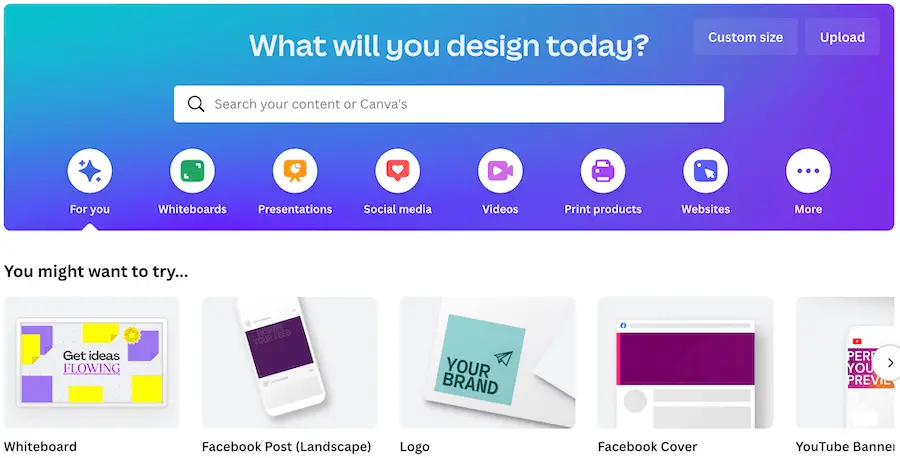
Because of this, CanvaPro has made it simple to resize your picture with the touch of a button.
The design tool automatically lists the most common picture sizes for social media platforms, but you may also change the measurements if necessary.
The basic conclusion is that you must resize your graphic for the right platform if you want your social media postings to be successful.
Additionally, it will assist your brand remain consistent and give you a greater chance of attracting and holding your audience’s attention.
When creating beautiful visuals for your social network, it’s important to keep them organized and accessible in a secure location.
When you can’t find something you know you saved, it may be incredibly annoying and time-consuming.
Make design folders to relieve your tension!
Running a couple of separate social media campaigns?
Make a folder for each one and place the campaign-related visuals in the appropriate folder.
You can discover your images quickly and simply by organizing the files in a way that works best for your company.
6. Numerous Awesome Features
You will have access to a ton of fantastic tools, whether you use CanvaPro or the free version, to help you make your social posts stand out from the crowd.
Fonts
You may select from a variety of typefaces if you want to add text to your artwork.
Make sure the typeface you select truly reflects your brand, and avoid using more than two font types in a single design.
Using many typefaces in one design will make it appear disorganized and less professional.
Additionally, much as with photos, you can submit your own fonts for usage if Canva doesn’t already have any that suit your brand.
Images
You will have access to an image collection with more than 200,000 pictures in Canva’s free edition.
In contrast, that amount increases to over 60 million pictures, drawings, and icons in CanvaPro.
With this many high-quality stock photos available, you’ll have no trouble finding the ideal picture right away.
Do you want to utilize a photo or video you took yourself? No issue.
You may quickly and easily upload your picture, logo, or video to Canva.
Animation and Stickers
Do you want to add motion and life to your graphic? Easy!
You may add digital stickers to your artwork in the free version to make it move like a gif.
On the other hand, CanvaPro gives you the option to save your image quickly and animatedly in addition to letting you utilize stickers.
Animations and stickers are excellent ways to draw in your audience.
People may pause their scrolling for a little while to look at your message if there is even the slightest indication of movement.
Templates
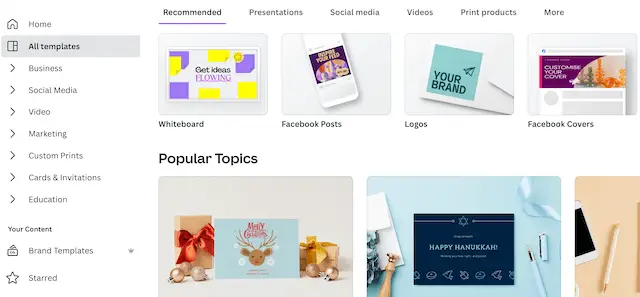
The usage of templates is highly recommended if you still feel unable or pressed for time to develop a graphic from scratch.
You can swiftly generate professional-looking material in just a few minutes with the wide variety of available templates for professionals.
Even though these templates are predesigned, you can still personalize them by changing the colors to match your brand, adding your own photos, altering the fonts, scaling the text, adding your logo, etc.
7. Integration With Other Apps
Okay, I’ll admit that I haven’t yet looked into this feature.
Pixabay, Pexels, Emojis, Embeds, Google Maps, QR Code, Google Drive, Giphy, Dropbox, Instagram, Flickr, YouTube, Typeform, Box, Bitmoji, Brandfolder, BrandFetch, Hue & Stripe, Hubspot, Pixton, and Filkers are just a few of the applications you can utilize with Canva.
Each of these applications or pieces of software comes with a description of what you can accomplish with it.
All of these can be found in Canva’s free edition, and the pro version adds some even more incredible capabilities, such as the ability to design your own brand kit, a background remover (to make PNG and vector files), access to even more stock pictures and templates, and much more.
Final Thoughts
On social media, visual material is essential for brand success.
According to data, postings containing high-quality, aesthetically pleasing photographs often have a better interaction rate than those that only contain text.
That being stated, your company should concentrate on producing truly engaging content constantly.
On Canva, one graphic may be made in a matter of minutes, but it’s vital to remember that you must upload often, which might take time for company owners who also have other critical responsibilities.
Further Reading: