
Two excellent design programs are Canva and InDesign.

Either option is good for an ordinary designer, but for individuals who are tech-savvy, choosing the correct application may be really beneficial.
Table of Contents
Is Canva Like InDesign?
Canva is a web-based, free-to-use visual design tool that lets users produce posters, infographics, presentations, and more.
A sophisticated desktop application for graphic design is called InDesign.
The program is used to create, publish, and print designs for both digital and actual print media.
Canva is newer than Adobe InDesign, which has been the industry standard for print design for much longer.
Although InDesign has a steep learning curve and is a complicated application, it gives users a lot of control over their designs.
You may design layouts for print that are highly customizable with InDesign.
Canva is a relatively recent platform that focuses more on producing designs for social media and the internet.
Compared to InDesign, Canva is simpler to use and has a larger selection of templates and features, making it ideal for producing rapid designs.
With Canva, you do, however, give up some personalization and control.
So which platform is superior? What your design is needed for truly depends on that.
InDesign is the solution if you require a highly personalized print design.
Canva, however, is a great choice if you want a quick and simple design for social media or the web.
In conclusion, Canva excels at producing rapid graphics for social media or the web, whereas Adobe InDesign excels at producing fully customized print design.
They differ greatly from one another, and these distinctions go beyond simple templates.
Here is how Canva and Adobe fared in their conflict:

Interfaces
Adobe InDesign provides far more flexibility when it comes to dealing with the application.
But a more complex system also has a more complex user interface.
To grasp the Adobe tool, one must be a professional graphic designer, and learning it requires more than one YouTube instruction.
Canva, on the other hand, is a drag-and-drop tool with no excessively sophisticated controls, therefore it is well known for its simplicity of use.
On Canva, you can also learn how to create groups and quickly produce posters and brochures.
There are many options accessible with the premium version’s more than 400 thousand templates.
The intricacy of usage and intended application are what stand out between Canva and Adobe.
One is intended for a program-savvy graphic designer, while the other is for marketers who want a short-term designer tool to assist with one or two posts.
Canva makes learning faster and more memorable whereas Adobe takes considerably more time and effort to master.
Templates
For using templates, Canva wins simply because the procedure is a lot simpler with Canva.
Canva is another free design tool that offers users access to a vast collection filled with 8,000 free designs for every occasion!
Even while Canva offers a paid Pro version, there are many fantastic templates and features available for free.
There are many templates available for Adobe InDesign as well, and some of the more popular ones may be obtained from outside sources.
Pre-made templates are not Adobe’s strongest suit or primary focus, despite the fact that they are a graphic designer’s best tool.
It’s more of a DIY tool that demonstrates how to create your own customized template from scratch.
Price
You may now subscribe to Adobe on a monthly or yearly basis and cancel at any moment.
Although there are reductions available for students and academic organizations, Adobe applications are still somewhat pricey.
The most affordable option for a designer is to regularly utilize numerous Adobe applications, in which case the monthly fee of 59 euros is reasonable.
Canva is free to use, but professionals may choose to utilize the premium Pro and Enterprise editions, which offer a wider range of features and also come with free stock images.
Canva’s monthly costs are between 11 and 27 euros in price. In general, both free and paid templates are available in Canva and Adobe software.
Both communities provide a fairly wide variety for people with various needs.
Additionally, templates and freely editable content resources are frequently included in tutorials.
Because both providers’ memberships may be terminated on a monthly basis, it is simpler to budget for them both.
Platforms
Major desktop browsers support Canva, and Android and iOS users may download the Canva app to create and sync designs on their phones.
Comparatively, Adobe InDesign may be used on a variety of operating systems, including Windows, Linux, Android, iPhone/iPad, macOS, and web-based platforms.
Font Packages
Canva truly features a wide selection of pre-installed fonts for free software.
You get access to more than 1000 fonts with Canva Pro than you have with Canva’s free version.
Both of these choices, meanwhile, are less comprehensive than Adobe InDesign, which offers you access to Adobe’s font library.
Additionally, you may download and install other fonts to use with the application.
Features
On a desktop computer, you may download apps for Adobe InDesign and Canva.
Canva can be used in the browser as a web app as well.
Documents are kept in the cloud, and the storage capacity allows for the storage of up to 100 GB of data.
Drag and drop functionality in Canva makes it simple to add media, such as photographs, icons, and videos, to a library.
There is no indication, though, if adding files makes papers bigger than they should be, which can hinder transmitting or exporting files.
The designer can detect whether files in Adobe InDesign are growing too big and can make it difficult to read and deliver data.
The placement and optimization of picture material in the layout is possible with Adobe InDesign, and any associated formats, including the usage of font families, may be exported as well.
Packaging and the export function are related.
Both apps have similar PDF export functionality, while Adobe provides additional compression choices and technical configuration nuances.
Canva concentrates on the very minimum standards for file export.
Team members may edit and comment immediately on the products in Canva, recording changes at the same time.
This is a huge benefit over InDesign.
Canva also enables the incorporation of applications like Typeform, Hubspot, Instagram, or YouTube that are important for organizing and disseminating communication content.
Teams may schedule content to be published at certain times using Canva’s unique content planner function.
Only designing layouts for the needs of print and the web is what Adobe InDesign does.
Through different grid settings in InDesign, spacing to the page margin and between items may be controlled.
A variety of layout master kinds, including intro, index, overview, and outro, may also be generated.
Canva’s handling of the layout is far too ad hoc, making it somewhat inappropriate for the creation of design systems.
To maintain a logical and consistent design, it needs master layers that specify how items can and should be organized on pages.
A few particular workarounds allow you to keep consistency with Canva as a designer, but you normally can’t just tell a teammate how to do anything.
Additionally, Adobe InDesign allows for cleaner creation of picture element proportions.
Although it is possible to directly change an image’s size in Canva, it might be challenging to match even the requirements.
The primary distinction between the two layout software packages is that Adobe InDesign enables you to create components using paragraph and character forms, which is equivalent to the CSS guidelines for HTML elements.
Once the formats have been changed, the entire document will immediately reflect those changes.
Adjustments in Canva must be done by hand.
Depending on experience and visual perception, this may lead to a number of change cycles, which might be harmful to the publication schedule.
Making changes manually is the easiest approach for a designer to see where the layout needs to be improved.
A non-designer could soon lose track of this and fail to see all the aesthetic errors, including inconsistent spacing or oddly sized fonts in difficult-to-read formats.
Just as with Adobe InDesign, using Canva requires practice.
However, Canva’s lack of function complexity results in a quicker learning curve.
File Formats
Another factor to take into account is the type of files your design will require.
Your Canva membership will determine the kind of files you may export.
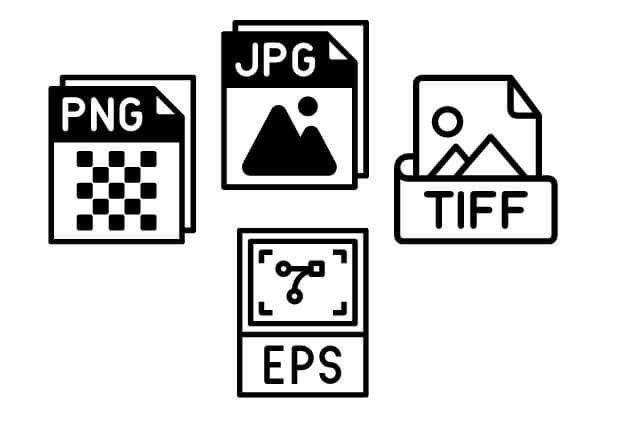
For each membership level, a JPG, PNG, or PDF file is available for download.
Based on personal experience and feedback from others, these files don’t always download clearly and simply, which might negatively affect your brand or the way your audience interacts with you.
Depending on the application you’re using, Adobe Creative Cloud allows you to generate an endless number of file formats. JPG, PNG, PDF, EPS, GIF, TIFF, and other related formats.
These files are still clear and transparent after proper export.
Stock Media
The following comparison between Canva and InDesign compares stock photos.
Both applications provide stock images that are integrated into your design.
Thousands of free images, movies, audio files, backdrops, and other design components are available in Canva free.
This capability is expanded and millions of files are made available with the Pro plan.
In contrast, Adobe InDesign makes use of Adobe Stock. Although most products on Adobe Stock are paid, some of them are free.
Although the software is pricey, you may anticipate finding more photographs on Adobe Stock than on Canva.
Legal Usage
When it comes to design aspects and how to use visuals created with their program, Canva uses odd jargon.
According to a number of interpretations, you are not permitted to use the Canva Free edition of the software to create anything linked to business, especially if you want to sell the product.
Similar language that prohibits the usage of designs created using software may be found in Canva Pro and Enterprise.
Such language is not used by Adobe Creative Cloud or any of its applications.
As long as you don’t commit any acts of theft throughout this process, anything you create with Adobe is entirely yours and maybe lawfully utilized for your business (copyright laws).
Professionalism
Based on its templates, InDesign produces more professional paperwork, and its customizing tools let you build distinctive designs.
Canva caters more to a younger audience and is more focused on social media graphics and presentations.
Speed
Canva has a quick process and is a speedboat. Naturally, Canva is limited to using programs like Photoshop or Indesign.
However, they are significantly more capable, making them a slower, more comprehensive “tanker” option.
More than applications, design experience determines speed.
Therefore, Canva is often quicker to use for novices.
Using models and apps, the UI enables you to make it pleasant while purposefully limiting text and picture manipulation.
However, someone with more expertise might find using InDesign to be simpler.

Final Thoughts
Both Canva and InDesign have advantages and disadvantages.
The problem is that neither choice is fundamentally superior to the other.
Just like owning InDesign doesn’t automatically make you a skilled designer, using Canva does not imply that your material will be of low quality.
It all depends on how you employ the program.
Your skill level will determine which platform is better for you.
Further Reading: