

You’ve made a stunning presentation in Canva, but how do you transfer it to PowerPoint?

I got it. Canva may be favored by some of you over PowerPoint.
However, you might need to convert the Canva presentation into a PowerPoint file someday if you want to show it to a non-Canva user.
It turns out that you can accomplish this rather quickly.
Table of Contents
Can Canva Be Downloaded as PPT?
Sure, Canva allows you to save your work in PowerPoint format.
All you need to do is navigate to the Share button, scroll to locate the PowerPoint option, and click download to download a Canva presentation as a Microsoft PowerPoint presentation.
Be aware that some Canva components might not work properly on different platforms.
What is the procedure for making a presentation in Canva and downloading it as a PowerPoint presentation?
Look no further if you want to discover how to download your presentation to Microsoft PowerPoint!
To build and download your Canva presentation to PowerPoint, follow these steps:
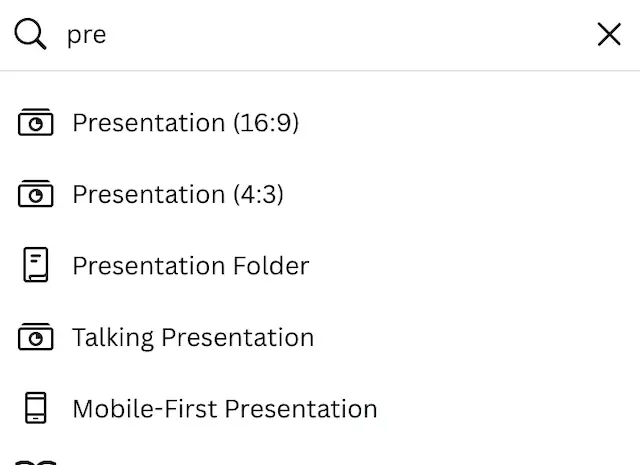
Step 1: Open a blank canvas project or create a new one and select the Presentation template.
Either begin with a new page or use one of the predefined templates and change the relevant information.
Step 2: Using the toolbar on the left side of the screen, add the data, images, and other components that you wish to include in your presentation.
This hub will act as the central location for searching for items, adding text fields, including uploads, and more.
Step 3: By clicking on the Plus sign at the bottom of the canvas, you may add further pages to your project.
Additionally, you have the option to integrate either a few of the template’s designs or all of the pages from the template by using the templates tab.
Step 4: Next, select the Share icon in the platform’s upper right corner.

The option for more options is indicated by three dots and is located at the bottom of the menu.
Click on it, then scroll down until you find download choices for your file.
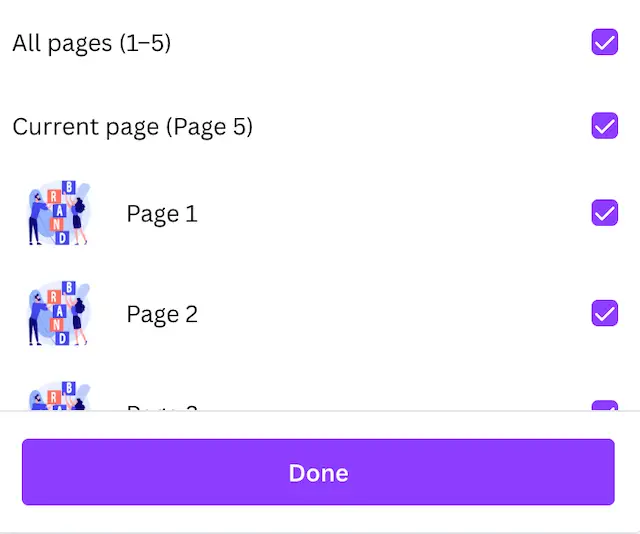
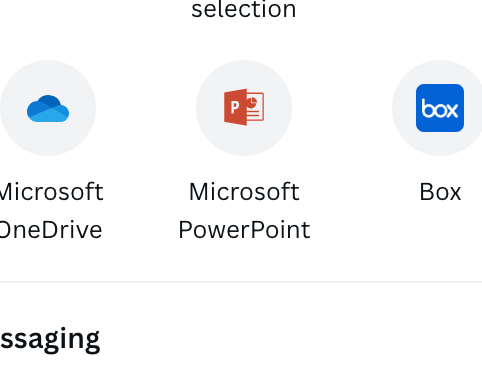
Step 5: After selecting Microsoft PowerPoint from the drop-down menu, you can choose which pages of your presentation to save.
You may select certain slides or the entire presentation (all pages).
Step 6: After that, another notice will appear to make sure this is the action you wish to do.
As soon as you click the download button, your Canva design will be saved as a.pptx file and opened directly in PowerPoint!
Please be aware that some components or fonts may not be supported by Microsoft software when you open your presentation in PowerPoint.
This can be a problem if you used a font from Canva that wasn’t previously downloaded on your device.
Fear not, however! You may either use a typeface that currently exists in PowerPoint to replace it, or you can download it from the internet.
Powerpoint Conversion Options for Canva
I’ll demonstrate here how to transfer your presentation from Canva to Powerpoint in two different methods.
First Approach
When using this technique, the presentation is still made in PowerPoint and not Canva. the first method of PowerPoint conversion for Canva.
- Create your presentation with Canva.
- Then download PNG versions of each image.
- For your PowerPoint presentation, make blank slides.
- Finish by adding the Canva pictures to the slides that are still blank.
Second Approach
Some individuals prefer method number three, which involves obtaining the document in pdf format and turning it into a PowerPoint presentation.
This may be accomplished using the free program SmallPDF.
This document is still in its original format, allowing you to make any necessary changes and edits.
This is, in my opinion, the trickiest way to convert Canva to PowerPoint.
It is significantly simpler to download the PNG files and add them to empty slides.
Is Canva an Upgrade Over Powerpoint?
Users of Canva may easily produce designs that seem more professional.
Canva’s ready-made themes, typefaces, and simple drag-and-drop interface make creating presentations a snap.
Which one ought you to pick then?
Depending on how you want to utilize it. If you use Canva frequently to generate unique visuals for your blog, social networking, and occasionally for presentations, it’s a good option.
However, since PowerPoint focuses on one aspect and provides more customization choices, we advise it if you are solely interested in making presentations.
If you have exceptional PowerPoint abilities, you can create aesthetically beautiful presentations that capture audiences’ attention.
You may still use PowerPoint online for free if your computer does not already have Microsoft Office 365 installed.
Look online for Microsoft Office that is free.
Basically, it’s the Microsoft Presentation software on the web, available through any browser.
To access it, all you need is a Microsoft account.
Is Canva Useful for Presentations?
For making presentations, social media graphics, and other types of graphics, Canva design software is ideal.
The free plan offers a vast selection of presentation templates.
As an alternative, Canva pro offers more templates and is less expensive.
Canva may never be able to compete with Powerpoint, but the platform does have a completely different target market.
Final Thoughts
On the Canva platform, you can create a project from scratch or use a preset presentation template that is available in the library to create excellent presentations.
While you may show your work directly on Canva, if you want to download the presentation for use in Microsoft PowerPoint, click the Share button and select the download option.
Depending on whether the feature is supported by the program, some Canva components might not automatically move to Microsoft PowerPoint.
Further Reading: